Building Reusable Prompt Templates in Lexicon
The simplest use of Lexicon is saving prompts you type a lot. But the template system is where things get more useful. Instead of saving static text, you can build parameterized prompts that adapt to whatever you’re working on.
Variables
Any text wrapped in double curly braces becomes a variable: {{language}}, {{code}}, {{context}}. When you use the prompt, Lexicon (or an MCP client) fills in the values.
Here’s a code review prompt I use constantly:
Please review the following {{language}} code and provide feedback on:

1. Code Quality & Best Practices
   - Readability and maintainability
   - Naming conventions
   - Code structure and organization

2. Performance & Efficiency
   - Algorithmic complexity
   - Memory usage
   - Potential optimizations

3. Security & Safety
   - Input validation
   - Security vulnerabilities
   - Error handling

Code to Review:
{{code}}
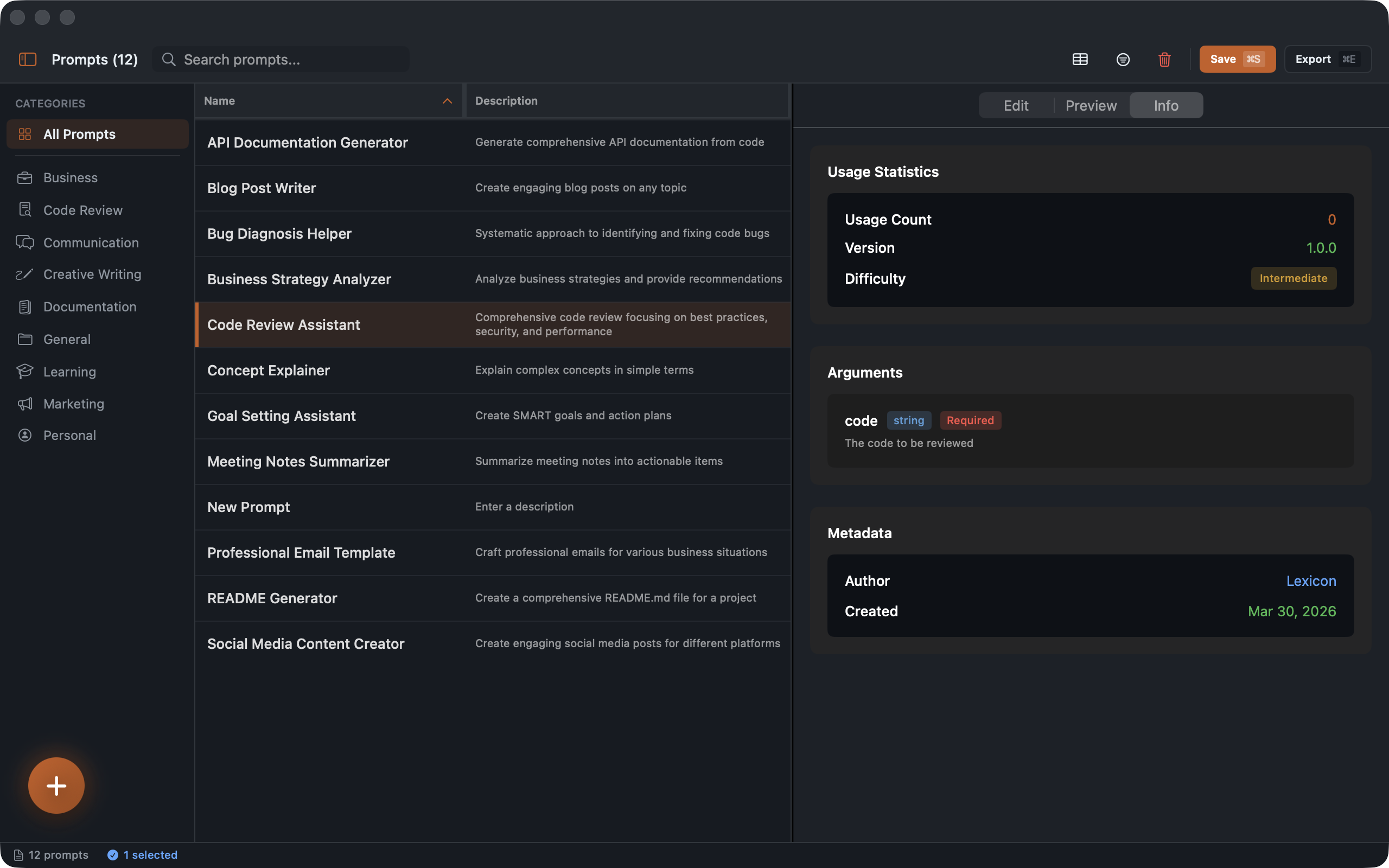
Two variables: language and code. When triggered via MCP, Claude Code prompts you for both values, then sends the fully rendered prompt. The Info tab shows you the detected arguments with their types:
Multi-Message Prompts
A single user message works for simple cases, but some workflows benefit from a system prompt paired with a user message. Lexicon supports multiple messages per prompt, each with a role:
- System sets the AI’s behavior and constraints
- User provides the actual request
- Assistant can seed a partial response for the AI to continue
For example, a documentation writer prompt might have a system message like “You are a technical writer. Use clear, concise language. Avoid jargon unless the audience is developers.” paired with a user message that contains the actual content to document.
The editor lets you add, remove, and reorder messages. Each one has its own text area and role picker.
Preview Before Use
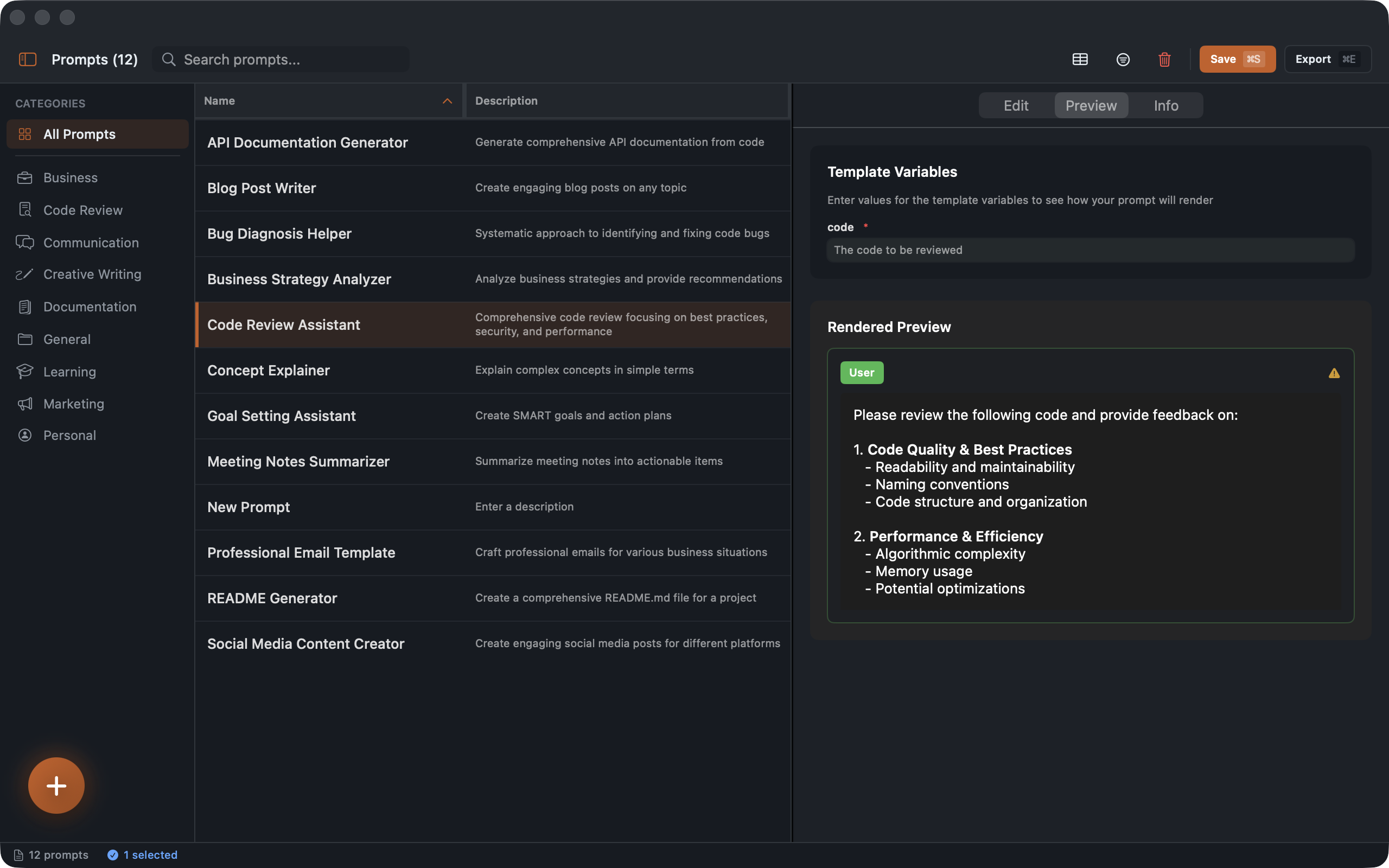
The Preview tab lets you fill in variable values and see exactly what the AI will receive. This matters more than you’d think. Small phrasing changes in prompts can meaningfully affect output quality, and being able to see the rendered result before sending it helps you catch issues.
Organizing Templates
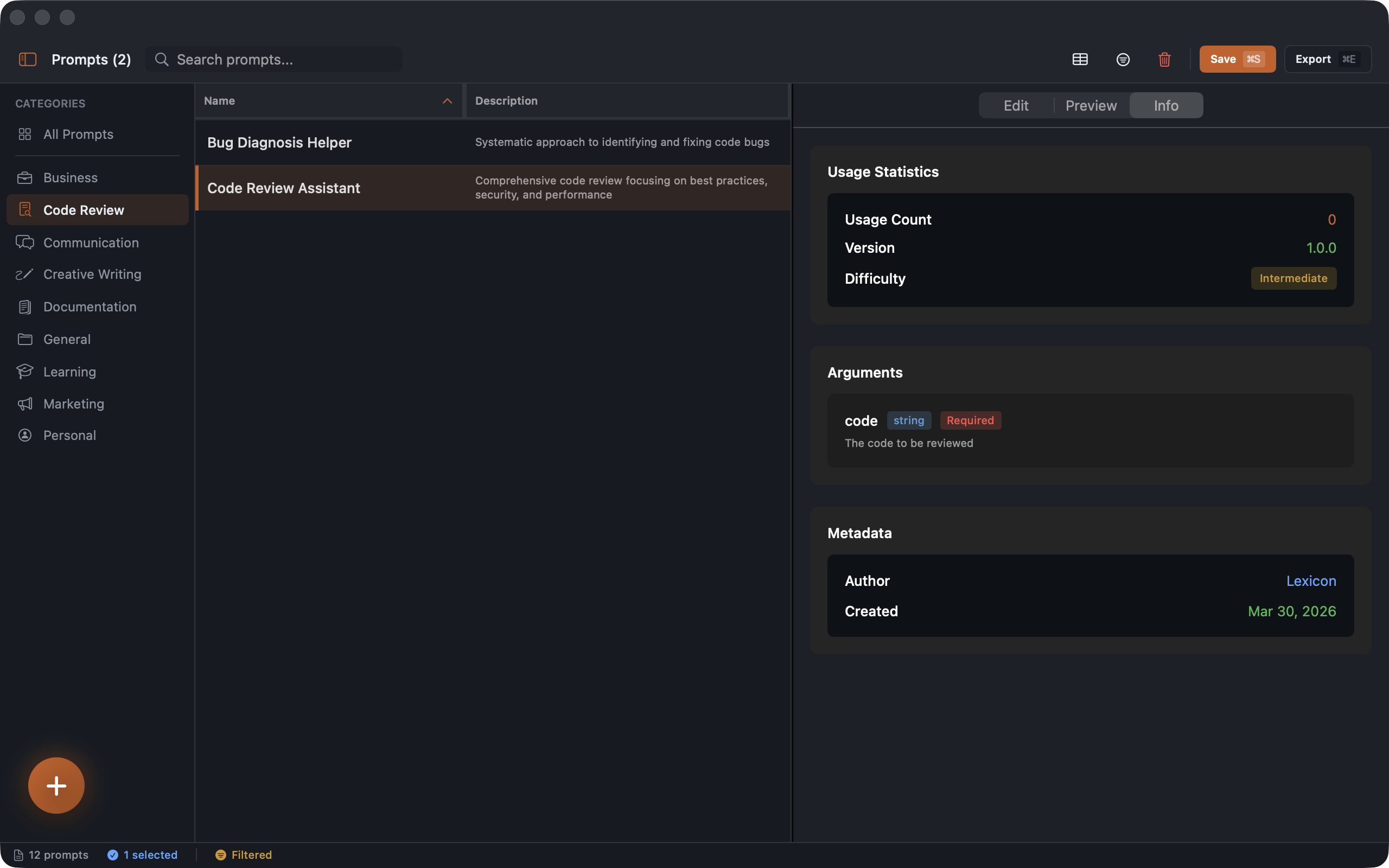
Once you have more than a dozen prompts, organization matters. I use categories for broad workflow types (Code Review, Documentation, Analysis, Communication) and tags for cross-cutting concerns. A prompt can be in the “Code Review” category but tagged with both swift and python if it’s language-agnostic with a language variable.
Smart collections handle the rest. I have one that shows prompts I’ve used in the last 7 days, one for anything rated 4+ stars, and one for prompts with no usage (cleanup candidates).
The MCP Angle
All of this template machinery works through MCP too. When an MCP client requests a prompt, it gets back the argument definitions. The client prompts the user for values, substitutes them, and sends the result to the model. You define the template once in Lexicon and use it from any MCP-compatible tool.
The Lexicon subscription is on the Mac App Store at $1.99/month. If you’re building prompts you use repeatedly, having a structured place to refine and version them pays for itself quickly.
Stay in the loop
Get notified when I publish new posts. No spam, unsubscribe anytime.