Setting Up Lexicon with Claude Code and Claude Desktop
I’ve gotten a few questions about how the MCP integration in Lexicon actually works in practice. The short version: you add one config entry, and your entire prompt library shows up as slash commands in Claude Code. Here’s the full setup.
Install Lexicon
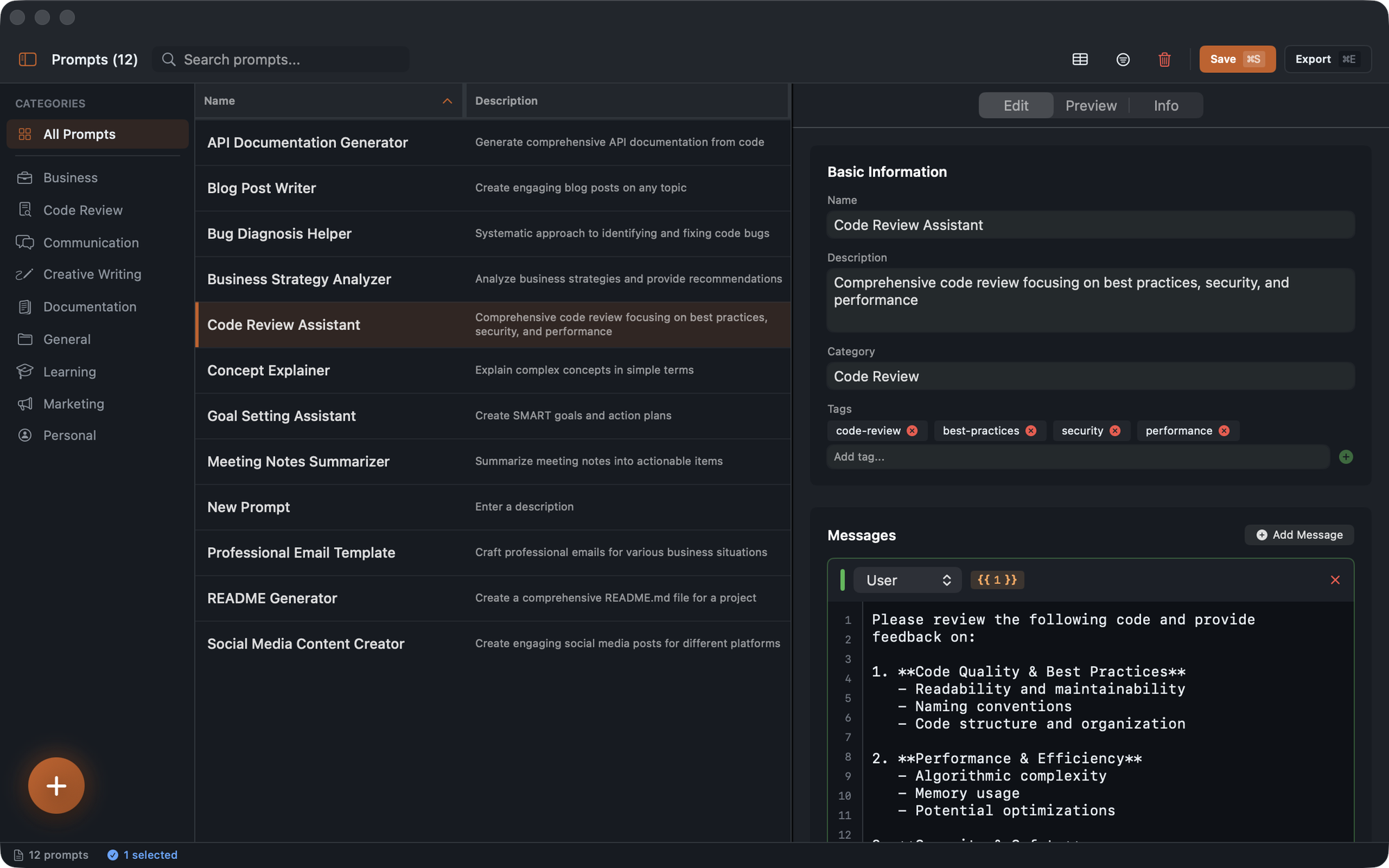
Grab it from the Mac App Store. After launching, the onboarding wizard seeds your library with some example prompts across categories like Code Review, Documentation, and Business. You can delete these later or use them as starting points.
Connect to Claude Desktop
The MCP server is bundled inside the Lexicon app bundle. You don’t install anything separately. Open your Claude Desktop config file:
# Claude Desktop
open ~/Library/Application\ Support/Claude/claude_desktop_config.json
Add Lexicon to the mcpServers section:
{
  "mcpServers": {
    "lexicon": {
      "command": "/Applications/Lexicon.app/Contents/MacOS/lexicon-mcp.app/Contents/MacOS/lexicon-mcp"
    }
  }
}
Restart Claude Desktop and you’re connected. The MCP server reads directly from the same SQLite database the app uses, so any prompt you create or edit in Lexicon is immediately available.
Connect to Claude Code
For Claude Code (the CLI), add the same server to your project’s .mcp.json or your global MCP config:
{
  "mcpServers": {
    "lexicon": {
      "command": "/Applications/Lexicon.app/Contents/MacOS/lexicon-mcp.app/Contents/MacOS/lexicon-mcp"
    }
  }
}
Now type /lexicon: in Claude Code and you’ll see autocomplete for every prompt in your library. Each prompt shows its name and description, and if it has template arguments, Claude Code will ask you for the values before sending.
Tag-Based Filtering
If you have a large library and want to scope which prompts are available per-project, use the LEXICON_ALLOWED_TAGS environment variable:
{
  "mcpServers": {
    "lexicon": {
      "command": "/Applications/Lexicon.app/Contents/MacOS/lexicon-mcp.app/Contents/MacOS/lexicon-mcp",
      "env": {
        "LEXICON_ALLOWED_TAGS": "swift,ios"
      }
    }
  }
}
Now only prompts tagged with swift or ios show up in that project. Your Python prompts stay out of your Swift project and vice versa. This is comma-separated, and prompts matching any of the listed tags are included.
What the MCP Server Exposes
Beyond prompts, the server also provides:
Resources for reading prompt metadata, category indexes, and usage analytics. These give AI agents background context about your library without taking explicit action.
Tools for CRUD operations. An AI agent can create, update, or delete prompts on your behalf. This sounds dangerous, but every modification is logged in the activity table, so you can see exactly what changed and when.
Search
The search in Lexicon itself is instant. Type in the search bar and results filter as you type, matching against name, description, tags, author, and category.
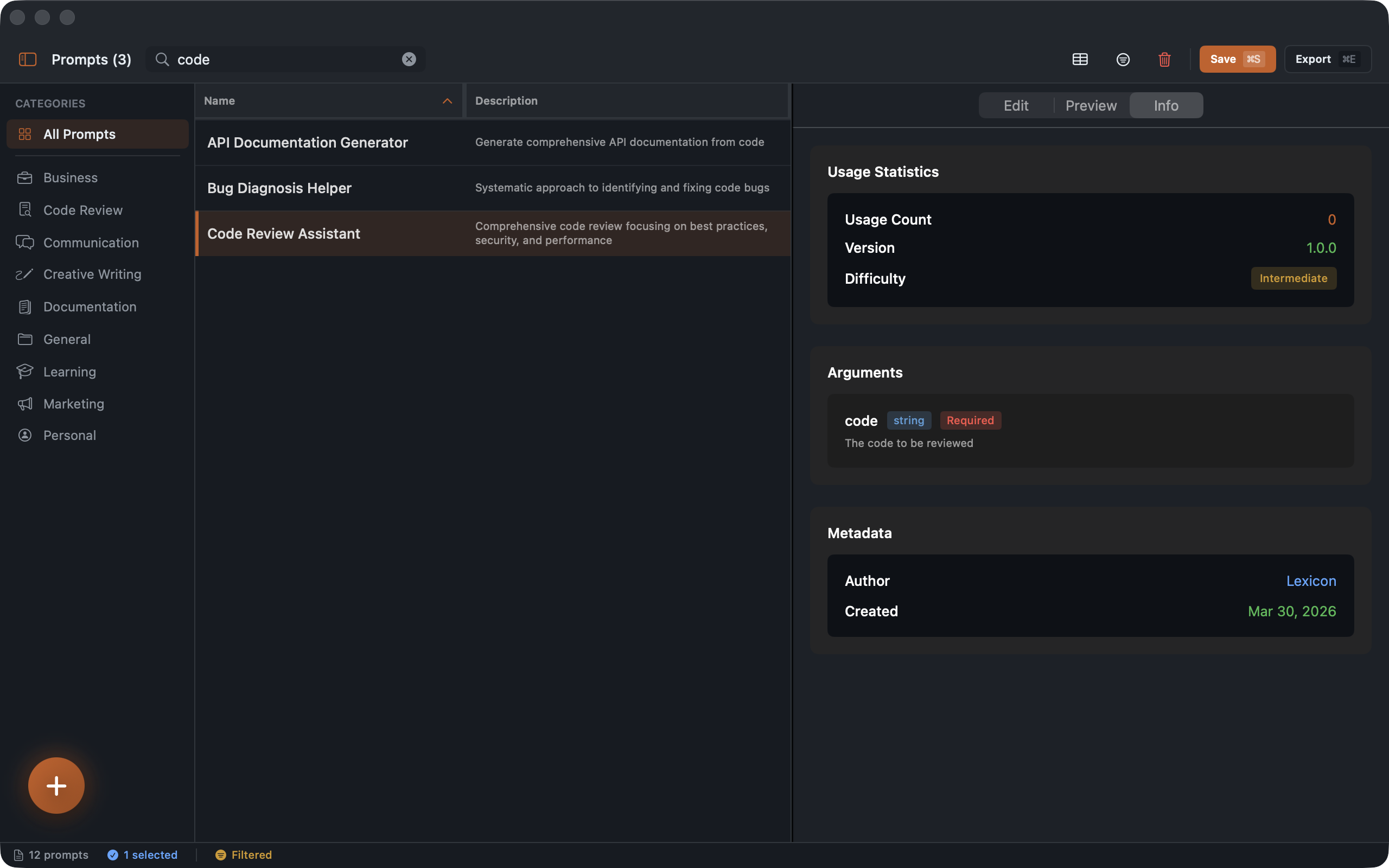
You can also use search tokens for more specific queries: tag:python, category:code-review, rating:4, difficulty:advanced. These compose, so code tag:swift finds prompts matching “code” that are also tagged swift.
The Workflow
My day-to-day looks like this: I notice I’m typing the same kind of instruction repeatedly. I open Lexicon, create a prompt with the refined version, tag it appropriately, and move on. Next time I need it, I type /lexicon: and it’s there. If the prompt needs a tweak, I edit it in Lexicon and the change is live immediately, no restart needed.
It’s a small loop, but it compounds. After a few weeks of this, you end up with a curated library of your best prompts, organized and accessible from every AI tool you use.
Linked from
- Your API Is Already an MCP Server Emit's MCP server is an endpoint inside the existing FastAPI app, not a separate …
Stay in the loop
Get notified when I publish new posts. No spam, unsubscribe anytime.